

• Skip to primary navigation
  • Skip to main content
  • Skip to primary sidebar
  • Skip to footer

DisplayMonk

Solution to your problem

  • Home
    • Privacy Policy
  • About Us
  • Repair Tips
  • Schematics Bios
  • Course
  • Online Jobs
  • Tools
  • Enquiry / Contact
Home » home » Motherboard repairing

Motherboard repairing

dell beeping sound on startup how to troubleshoot

March 13, 2023 by displaymonk

dell sound of beeping on startup

Introduction

When a Dell laptop or desktop beeps during startup, it is usually an indication of a hardware problem. There problem may come like

  • 3 beep sound in dell laptop,
  • 4 beep sound in dell laptop,
  • 5 beep sound in dell laptop,
  • 7 beep sound in dell laptop,
  • beep sound related to cpu,
  • dell 2 beep code,
  • dell 3 beep code,
  • dell 4 beep code,
  • dell 5 beep code,
  • dell deffrent beep codes,
  • dell beeping sound on startup

dell laptop gets beeps on startup solutions:

Here are a few common causes of beeps during startup for Dell laptops:

RAM problem:

If the beeps are continuous and repetitive, it could be a problem with the RAM. This could be due to a loose connection, faulty RAM module or incorrect installation of RAM.

Overheating

If the laptop overheats, it can cause beeping during startup. This is because the laptop’s BIOS has a temperature threshold that, when reached, causes the system to emit an alarm.

Motherboard failure

A beep code may indicate a problem with the motherboard. This could be due to a hardware failure or a malfunctioning component.

Power supply issue

If the power supply is not providing enough power to the laptop, the laptop may beep during startup.

Other hardware problems

Other hardware components like the hard drive, graphics card, or CPU could also be causing the beeping.

Final conclusion

If you are not familiar with troubleshooting hardware problems, it is best to read our pages, contact Dell support or a qualified technician to diagnose and fix the problem.

Filed Under: laptop desktop chip level repair help guide Tagged With: 4 beep sound in dell laptop, 5 beep sound in dell laptop, 7 beep sound in dell laptop, beep sound in cpu, dell 2 beep code, dell 3 beep code, dell 4 beep code, dell 5 beep code, dell beep codes, dell beeping sound on startup, dell laptop 5 beeps, dell laptop beep codes, dell laptop beep sound during startup, laptop beeping on startup

Programmable SIO list for laptops free latest

February 10, 2023 by displaymonk

programmable sio collection

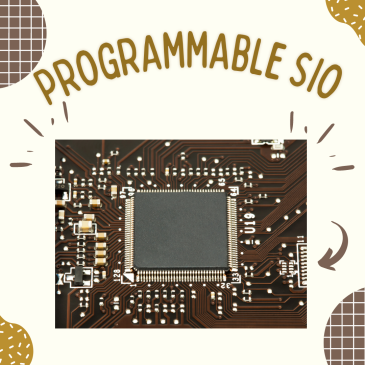
In newer generation motherboards EC BIOS is merged into SIO means if SIO is bad then we have to replace it and copy EC BIOS into SIO. These SIO is called programmable SIO.

Below is the list of programmable SIO’s :

  • ite IT8585e programmable
  • ite IT8586e programmable
  • ite IT8985e programmable
  • ite IT8522 programmable
  • ite IT8380E programmable 192kb
  • ite IT8083VG programmable 192kb
  • ite IT8995E-128 programmable
  • ite IT8886H programmable
  • ite IT8886he programmable
  • ite IT8386 programmable
  • ene KB9012 programmable
  • ene KB9016 programmable
  • ene KB9018 programmable
  • ene KB9022 programmable
  • ene KB9028qc programmable
  • ene kb9010 programmable
  • ene KB3930qf/b1 programmable
  • nuvoton npce288na0dx programmable
  • nuvoton npce388na0dx programmable
  • SMSC MEC 1609 programmable

so above is the list of programmable SIO for old and latest laptop motherboard.

Filed Under: laptop desktop chip level repair help guide Tagged With: enit sio programmer, io chip programmer, it8502e programmable or not, ite it8517e equivalent, npce885la0dx programming, sas sio programmer

Free laptop service manual schematics collection or schematic

October 9, 2022 by displaymonk

Free laptop schematics collection

We provide you with a quality laptop schematics bios collection having different service manual schematics for many companies and brands like HP, Lenovo, Samsung, Dell, etc. our laptop collection of schematics is free to use. You will have to just search for any brand and you will get free schematics for that computer.

Why required the free schematics collection or schematic?

You will require free laptop schematics collection for finding our schematic. When you are repairing any particular laptop you will require the schematics for that laptop. Many times it happens that you require a schematic without which you are not able to repair the laptop.

How I can get Free laptop schematics bios collection or schematic?

No worry! You just have to search in the below textbox and you will get over 28000 schematics free collection at no charge.

Search for free schematics, bios, and boardviews

Search for free schematics, bios, and boardviews

Thank you!

Filed Under: schematics, bios or boardviews Tagged With: free laptop schematics, hp laptop schematic diagram pdf free download, laptop motherboard schematic diagram pdf free download, laptop motherboard schematic diagram reading, laptop service manual pdf

15 steps to solve power on problem

September 15, 2022 by displaymonk

15-steps-to-solve-power-on-problem

First step Check SMPS

Remove 20 pin connector and 4 pin connector from motherboard.
Secondly, Short the green and black wire with twisser. After doing the short if SMPS starts running that means SMPS is in good working condition.

Second Step

Thirdly, after shorting green and black wire the SMPS fan is not running then check the power cable.
You can check it by keeping the multimeter in the continuity range.

First, put the multimeter point in the first hole of the wire and check for continuity beep sound on the multimeter. The beep sound should come from any
one of the points of the main cable. Then check another hole which should give a continuity beep with the second point. It means the power cable is working fine.
If the beep not coming from any of the points it means the main wire is not working. In that case, we will not change SMPS but change the main wire.

The main cable is shown in the below image as a black thick wire.

Third step check ATX cable(given in below diagram) for loose

Check connector for loose condition which means is there any loose condition for ATX connector to motherboard is loose.

Fourth step check for jumpers on motherboard.

change jumpers’ position to find out whether the motherboard is starting or not. If the motherboard is not starting change them again to the original position.

Fifth Step Clean the motherboard

get the motherboard out and clear it with any kind of Thinner which is Isopropyl alcohol / NC Thinner. While cleaning the motherboard use a brush to clean the motherboard. Finally after the cleaning of the motherboard heat the motherboard.

Sixth Step, Cross Checking CPU

Check for the pin of the processor and holes for the processor socket for any dust. Secondly, check for any alternative supported processor as a replacement for the processor and then check.

There should be any pin bend in the CPU socket for pinned socket. If found any pin bend then make it straight with the use of twisser.

For a pinless processor clean the pins on the processor and then reinsert processor into the motherboard.

Seventh step Check 4 pin ATX connector for any sort condition

From this 4-pin ATX connector two pins should beep on continuity mode with the ground and two pins should not beep. The hand position with digital multimeter prob should be done in following manner.

If 4 pins are beeping with Ground it means the problem in the VRM section of the desktop motherboard.

check for any faulty MOSFET found in the above image VRM section.

Eights step By eyes properly check components

scan all motherboard with eyes for any found faulty component. At least use 1 min to check it. Check for burnt track or component/ damaged component.

Ninth step Check for All MOSFETS

No any mosfet should be short , we can check it by using multimeter for the gate and source which should not beep on multimeter on continuity mode.

Tenth step Check port for any fault

remove all the external devices and check if any port is broken. and try to start the motherboard without any external device connected to the port.

Eleventh step Check for component heating

Just plug the main power ATX connector and check for whether any component chip is heating or not. If too much heating then it must be faulty.

Twelths step RTC Crystal Check

This crystal gets problematic due to many things. Check the required CRO machine but you can do the best way to replace directly it with another board Crystal and check the motherboard.

Thirteenth step Dry sold main IO chip

If upper solutions do not work then use thinner and heat to drysold by removing and refitting the main IO chip in the desktop motherboard. It is also called as power IC.

Last step if everything fails

If everything fails change the main IO chip which is also called as power IO chip.

Thank you!

Filed Under: laptop desktop chip level repair help guide Tagged With: motherboard solve power on problem, solve power on problem desktop

Calculate resistor color code by this

September 9, 2022 by displaymonk

Calculate resistor color code by this

Without use of digital multimeter also we can calculate value of resister. We will get into it as step by step, so lets start.

Color code information to know

Resister have minimum 3 color code lines and maximum it can go upto 6 color code coloured lines. It can be shown from below table

Most available resisters have 4 bands of color coding. Here 4 different color are given on the resister.

displaymonk.com

When checking resister code write the first two color band values as given in the above image.

First right side resister in above example

We can see the first band is of orange color.

The orange color value is 3 as per the ‘color cording value’ column.

The white color value is 9 as per the ‘color cording value’ column.

We write first two value as band color name suggest as “39”. So now we can write the value for the band as “39”.

Third band is also called as a multiplier. We will add the number of zeros as per the number ‘color cording value’ column. As we can see the third band is yellow and it have a value 4, we will apply 4 zeros as the value in column.

Now we can write the value for the band as “390000”.

The fourth band over the resistor is called as tolerance value. This band can have the color silver or gold.

Above diagram right, the first resistor can be calculated as “390000 ohms” It is because the resistance is always calculated in ohms.

If ohm value goes over 1000 then we calculate is by deviding it by 1000 and give as 1k ohm.

1K ohm = 1000 ohm

Above example “390000 ohm” will written as “390K ohm”.

Second right side resister in above example

In second right side resister we can see that there are four bands in order. First is Red band, second is Grey band, third is green band and lastly fourth is Golden band.

We will take the first two band color values from the column “Color cording value” column as ‘red’ is 2 and ‘grey’ is 8.

So we can write “28”.

Then comes the ‘green’ color band. Its value as per “Color coding value for green band is 5. so we can add five zero’s.

We can write this “2800000”.

Now we will add ohm value to it and convert it into kilo ohm (K ohm).

2800000/1000 = 2800K ohm.

as 2800K ohm is in tousand values we will divide it by 1000 to make it Mega ohm (M ohm).

2800/1000 = 2.8M ohm

We will add or substract 10 tolerance. means 10% value more or less.

What is tolerance in the resistor?

The line color line on the resister determines what tolerance the resistor supports. When you go to the shop to purchase the resister it can happen that that same capacity ex. 390k ohm resister not available. You can buy the available resistor who have ohm value upto 10% more or 10% less.

How to identify a resistor

Suppose the Resistor has the following color rings

Ring 1         Yellow        Fig 1

Ring 2         Violet          Fig 2

Ring 3         Orange        Multiplier

Ring 4         Gold           Tolerance

Add values

Yellow 4 + Violet 7 = 4+7 = 47

Orange 1000

So 4+7×1000 = 47×1000 = 47000 Ohms .That is 47000 / 1000 = 47K

Three colour resistor

Ring 1         Green 5

Ring 2         Black 0

Ring 3         Gold 1/10

Add values

Green 5 + Black 0 = 5+0 = 50 x 1/10 = 5 Ohms

Filed Under: laptop desktop chip level repair help guide Tagged With: colorcode, free resistor color code finder, resistor, resistor colorcode examples

August 2022 schematics bios and boardviews similar to lqv77.com

September 4, 2022 by displaymonk

August 2022 Schematics bios and boardviews free

august 2022 schematics bios and boardviews

Sometimes it is impossible to show hardware problems online for a solution. we do use Laptop Motherboard Schematics Sites as a Guide in that case to get information problems. We use the free laptop schematics sites to troubleshoot the core problem. we provide you collection of august 2022 schematics bios and boardviews.

What Are Laptop Schematics Bios and Boardviews?

Laptop schematics are diagrams in pdf formats that are used to denote the process flow in a laptop. Any kind of laptop has schematics (almost 98% of laptops have). Apart from the board views which most of today’s laptops don’t have. We can get it from free laptop schematics sites.

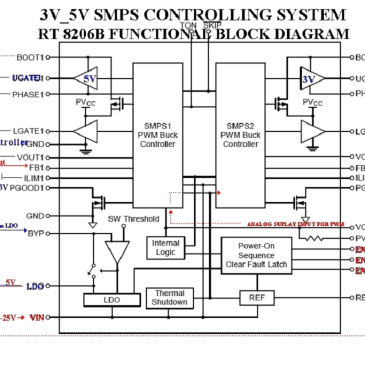
The flow starts from the VIN pin which injects voltage into the laptop. The voltage at this point may vary from 18 volts to 20 volts. There are different laptop SMD and Non-SMD components present on the schematics. There are different components like capacitors, diodes, resistors, crystals, coils (aka inductors), transformers, transistors, MOSFETs.

Why did they use it?

Schematics used for systematic flow findings in laptop motherboard. Without schematics, someone can only guess the error, which can also result in the loss of that component. That method of guessing was less efficient than schematics tracing. There are two types of tests you can conduct using schematics.

There are different types of testing used for troubleshooting desktop or laptop motherboards. You can use it according to your need. But cold testing from them can be done using schematics.

schematics are basically graphical representations of motherboard components and various parts in them. It is most available in .pdf format. They consist of components and wiring within the motherboard.

Any newbie (new technician) in laptop chip level repair must use laptop schematics. They are very useful for tracing the circuit of the laptop motherboard.

You can get also more information about laptops schematics, boardviews and bios in Wikipedia.

Filed Under: schematics, bios or boardviews

  • « Go to Previous Page
  • Go to page 1
  • Interim pages omitted …
  • Go to page 4
  • Go to page 5
  • Go to page 6
  • Go to page 7
  • Go to page 8
  • Interim pages omitted …
  • Go to page 17
  • Go to Next Page »

Primary Sidebar

Search On Website

Laptop Desktop Chip Level Help Guide

  • Windows 10 Restarts After Shutdown

    Windows 10 Restarts After Shutdown

    March 24, 2025

  • T.VST59.031 Firmware Software

    T.VST59.031 Firmware Software Download Latest

    March 18, 2025

  • Mobile and Tablet Repairing Institute Class in Ratnagiri, Maharastra

    Mobile and Tablet Repairing Institute Class in Ratnagiri, Maharastra

    December 14, 2024

  • Laptop and Computer Repairing Institute in Ratnagiri, Maharastra

    Laptop and Computer Repairing Institute Class in Ratnagiri, Maharastra

    December 14, 2024

  • pm-modi-lic-sakhi-yojana

    LIC’s Bima Sakhi Yojana 2025: How To Apply?

    December 12, 2024

Footer

Mobile Repair

We do mobile repairing.

Learn more about mobile repairing service.

Laptop Repair

We laptop repairing.

Learn more about laptop repairing service.

TV Repair

We do TV repairing.

Learn more about tv repairing service.

Copyright © 2025 · DisplayMonk

  • Home
  • About Us
  • Repair Tips
  • Schematics Bios
  • Course
  • Online Jobs
  • Tools
  • Enquiry / Contact