
• Skip to primary navigation
  • Skip to main content
  • Skip to primary sidebar
  • Skip to footer

DisplayMonk

Solution to your problem

  • Home
    • Privacy Policy
  • About Us
  • Repair Tips
  • Schematics Bios
  • Course
  • Online Jobs
  • Tools
  • Enquiry / Contact
Home ยป laptop desktop chip level repair help guide ยป Page 5

laptop desktop chip level repair help guide

Programmable SIO list for laptops free latest

February 10, 2023 by displaymonk

programmable sio collection

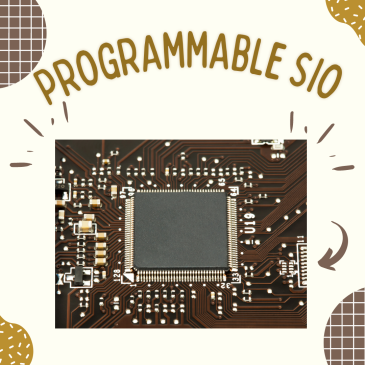
In newer generation motherboards EC BIOS is merged into SIO means if SIO is bad then we have to replace it and copy EC BIOS into SIO. These SIO is called programmable SIO.

Below is the list of programmable SIO’s :

  • ite IT8585e programmable
  • ite IT8586e programmable
  • ite IT8985e programmable
  • ite IT8522 programmable
  • ite IT8380E programmable 192kb
  • ite IT8083VG programmable 192kb
  • ite IT8995E-128 programmable
  • ite IT8886H programmable
  • ite IT8886he programmable
  • ite IT8386 programmable
  • ene KB9012 programmable
  • ene KB9016 programmable
  • ene KB9018 programmable
  • ene KB9022 programmable
  • ene KB9028qc programmable
  • ene kb9010 programmable
  • ene KB3930qf/b1 programmable
  • nuvoton npce288na0dx programmable
  • nuvoton npce388na0dx programmable
  • SMSC MEC 1609 programmable

so above is the list of programmable SIO for old and latest laptop motherboard.

Filed Under: laptop desktop chip level repair help guide Tagged With: enit sio programmer, io chip programmer, it8502e programmable or not, ite it8517e equivalent, npce885la0dx programming, sas sio programmer

15 steps to solve power on problem

September 15, 2022 by displaymonk

15-steps-to-solve-power-on-problem

First step Check SMPS

Remove 20 pin connector and 4 pin connector from motherboard.
Secondly, Short the green and black wire with twisser. After doing the short if SMPS starts running that means SMPS is in good working condition.

Second Step

Thirdly, after shorting green and black wire the SMPS fan is not running then check the power cable.
You can check it by keeping the multimeter in the continuity range.

First, put the multimeter point in the first hole of the wire and check for continuity beep sound on the multimeter. The beep sound should come from any
one of the points of the main cable. Then check another hole which should give a continuity beep with the second point. It means the power cable is working fine.
If the beep not coming from any of the points it means the main wire is not working. In that case, we will not change SMPS but change the main wire.

The main cable is shown in the below image as a black thick wire.

Third step check ATX cable(given in below diagram) for loose

Check connector for loose condition which means is there any loose condition for ATX connector to motherboard is loose.

Fourth step check for jumpers on motherboard.

change jumpers’ position to find out whether the motherboard is starting or not. If the motherboard is not starting change them again to the original position.

Fifth Step Clean the motherboard

get the motherboard out and clear it with any kind of Thinner which is Isopropyl alcohol / NC Thinner. While cleaning the motherboard use a brush to clean the motherboard. Finally after the cleaning of the motherboard heat the motherboard.

Sixth Step, Cross Checking CPU

Check for the pin of the processor and holes for the processor socket for any dust. Secondly, check for any alternative supported processor as a replacement for the processor and then check.

There should be any pin bend in the CPU socket for pinned socket. If found any pin bend then make it straight with the use of twisser.

For a pinless processor clean the pins on the processor and then reinsert processor into the motherboard.

Seventh step Check 4 pin ATX connector for any sort condition

From this 4-pin ATX connector two pins should beep on continuity mode with the ground and two pins should not beep. The hand position with digital multimeter prob should be done in following manner.

If 4 pins are beeping with Ground it means the problem in the VRM section of the desktop motherboard.

check for any faulty MOSFET found in the above image VRM section.

Eights step By eyes properly check components

scan all motherboard with eyes for any found faulty component. At least use 1 min to check it. Check for burnt track or component/ damaged component.

Ninth step Check for All MOSFETS

No any mosfet should be short , we can check it by using multimeter for the gate and source which should not beep on multimeter on continuity mode.

Tenth step Check port for any fault

remove all the external devices and check if any port is broken. and try to start the motherboard without any external device connected to the port.

Eleventh step Check for component heating

Just plug the main power ATX connector and check for whether any component chip is heating or not. If too much heating then it must be faulty.

Twelths step RTC Crystal Check

This crystal gets problematic due to many things. Check the required CRO machine but you can do the best way to replace directly it with another board Crystal and check the motherboard.

Thirteenth step Dry sold main IO chip

If upper solutions do not work then use thinner and heat to drysold by removing and refitting the main IO chip in the desktop motherboard. It is also called as power IC.

Last step if everything fails

If everything fails change the main IO chip which is also called as power IO chip.

Thank you!

Filed Under: laptop desktop chip level repair help guide Tagged With: motherboard solve power on problem, solve power on problem desktop

Calculate resistor color code by this

September 9, 2022 by displaymonk

Calculate resistor color code by this

Without use of digital multimeter also we can calculate value of resister. We will get into it as step by step, so lets start.

Color code information to know

Resister have minimum 3 color code lines and maximum it can go upto 6 color code coloured lines. It can be shown from below table

Most available resisters have 4 bands of color coding. Here 4 different color are given on the resister.

displaymonk.com

When checking resister code write the first two color band values as given in the above image.

First right side resister in above example

We can see the first band is of orange color.

The orange color value is 3 as per the ‘color cording value’ column.

The white color value is 9 as per the ‘color cording value’ column.

We write first two value as band color name suggest as “39”. So now we can write the value for the band as “39”.

Third band is also called as a multiplier. We will add the number of zeros as per the number ‘color cording value’ column. As we can see the third band is yellow and it have a value 4, we will apply 4 zeros as the value in column.

Now we can write the value for the band as “390000”.

The fourth band over the resistor is called as tolerance value. This band can have the color silver or gold.

Above diagram right, the first resistor can be calculated as “390000 ohms” It is because the resistance is always calculated in ohms.

If ohm value goes over 1000 then we calculate is by deviding it by 1000 and give as 1k ohm.

1K ohm = 1000 ohm

Above example “390000 ohm” will written as “390K ohm”.

Second right side resister in above example

In second right side resister we can see that there are four bands in order. First is Red band, second is Grey band, third is green band and lastly fourth is Golden band.

We will take the first two band color values from the column “Color cording value” column as ‘red’ is 2 and ‘grey’ is 8.

So we can write “28”.

Then comes the ‘green’ color band. Its value as per “Color coding value for green band is 5. so we can add five zero’s.

We can write this “2800000”.

Now we will add ohm value to it and convert it into kilo ohm (K ohm).

2800000/1000 = 2800K ohm.

as 2800K ohm is in tousand values we will divide it by 1000 to make it Mega ohm (M ohm).

2800/1000 = 2.8M ohm

We will add or substract 10 tolerance. means 10% value more or less.

What is tolerance in the resistor?

The line color line on the resister determines what tolerance the resistor supports. When you go to the shop to purchase the resister it can happen that that same capacity ex. 390k ohm resister not available. You can buy the available resistor who have ohm value upto 10% more or 10% less.

How to identify a resistor

Suppose the Resistor has the following color rings

Ring 1         Yellow        Fig 1

Ring 2         Violet          Fig 2

Ring 3         Orange        Multiplier

Ring 4         Gold           Tolerance

Add values

Yellow 4 + Violet 7 = 4+7 = 47

Orange 1000

So 4+7×1000 = 47×1000 = 47000 Ohms .That is 47000 / 1000 = 47K

Three colour resistor

Ring 1         Green 5

Ring 2         Black 0

Ring 3         Gold 1/10

Add values

Green 5 + Black 0 = 5+0 = 50 x 1/10 = 5 Ohms

Filed Under: laptop desktop chip level repair help guide Tagged With: colorcode, free resistor color code finder, resistor, resistor colorcode examples

Identification N channel P channel mosfet in laptop desktop repairing

September 4, 2022 by displaymonk

n channel or p channel mosfet in laptop reparing

It is a very tricky part for many of us to recognize which mosfet is a p channel and which mosfet is a p channel. we are
going to see how to identify which mosfet is n channel and which is n channel using the simple method which is by seeing markings on mosfet.
The ending code over marking gives us an idea about which mosfet is the n channel and which mosfet is p channel.

Process for checking the mosfet for N-channel or P-channel with examples

n channel or p channel mosfet in laptop reparing

Firstly, the n channel mosfets end with an even number like 0,2,4,8.
Secondly, the p channel mosfets code end with even numbers like 1,3,5,7,9.
Check your mosfet to know which kind of mosfet you have or want to replace. Mosfet replacing is the must-do process when mosfet is burnt or damaged internally.

Let’s see by examples

  1. Mosfet with code on it as – 7002
    This is n-channel mosfet because the the code on the mosfet ends with even number which is 2.
  2. Mosfet with code on it as – P4828 BA9A52
    This is n-channel mosfet because the code on the mosfet ends with even number which is 8.
  3. Mosfet with code on it as – P7410 BA1T9Z
    This is n-channel mosfet because the code on the mosfet ends with even number which is 0.
  4. Mosfet with code on it as – PD442 HL5FG
    This is n-channel mosfet because the code on the mosfet ends with even number which is 2.
  5. Mosfet with code on it as – P4914 BE4C1H
    This is n-channel mosfet because the code on the mosfet ends with even number which is 4.
  6. Mosfet with code on it as – fP636 FFDS 8958A
    This is n-channel mosfet because the code on the mosfet ends with even number which is 6.
  7. Mosfet with code on it as – fBE36 BS170
    This is n-channel mosfet because the code on the mosfet ends with even number which is 6.
  8. Mosfet with code on it as – fBE36 BS170
    This is n-channel mosfet because the code on the mosfet ends with even number which is 6.
  9. Mosfet with code on it as – A19T
    This is p-channel mosfet because the code on the mosfet ends with odd number which is 9.
  10. Mosfet with code on it as – P4433 BA8N42
    This is p-channel mosfet because the code on the mosfet ends with odd number which is 3.
  11. Mosfet with code on it as – P4407A BA8S1X
    This is p-channel mosfet because the code on the mosfet ends with odd number which is 7.
  12. Mosfet with code on it as – P4435 DA8S1A
    This is p-channel mosfet because the code on the mosfet ends with odd number which is 5.
  13. Mosfet with code on it as – PA380N03 16113TD
    This is p-channel mosfet because the code on the mosfet ends with odd number which is 3.
  14. Mosfet with code on it as – 8205
    This is p-channel mosfet because the code on the mosfet ends with odd number which is 5.
  15. Mosfet with code on it as – M8725 PNE2 1420
    This is p-channel mosfet because the code on the mosfet ends with odd number which is 5.
  16. Mosfet with code on it as – P4805 BE6N50
    This is p-channel mosfet because the code on the mosfet ends with odd number which is 5.

Filed Under: laptop desktop chip level repair help guide

Laptop repairing business / job guidance

August 28, 2022 by displaymonk

Laptop repairing business job guidance

The business / job starting

first of up all congrats ! You have shown interest in laptop repairing business / job guidance. It all starts with the interest. You are seeing this post because you are truly interested in becoming laptop repairing technician.

Laptop reparing is passionate driven field. Although the interest in electronics is recommended but it’s not important to have experience in electronics.

So it all start with with your interest.

The machinery required to laptop chip level reparing

as you grow you have to access to machinery required for laptop reparing. The quality machinery is very important to as it will give edge to your repairing and will make easy reparing.

Good material instruments is also important for health also. I have purchased the instruments which was 200rs as cheap cost it is as Indian. But the instruments get out for quality and they gone into condition that I have to literally throw them in garbage.

On other hand o have purchased good products from brands like Hoki which I am very proud of. They are still in good position even if I drop Hoki company product off accidently from from hand. It drop distance was around 4 to 5 feet.

Knowledge required for starting laptop chip level repairing

when I had started laptop chip level repairing I had little to no level of knowledge in laptop reparing. I still learner and say I am a lifetime learner for it. As the laptop reparing is kind of technical and theoretical combination of skill.

But I started to grow I realized that I ha e to hands down to both things technical and also theoretical. I am more prone towards technical knowledge but thing is that in the start you will not get any laptop to repair to hands-on. So my approach was and is that I have to be at least good in theoretical knowledge and will gain practical knowledge later on. Many can have a different path for learning but for me this is a path.

About laptop chip level repairing profession

It is a very vast field for newcomers to learn things. But as you grow to get to know little things about it. There are many things to learn in this profession. Some of the quality required are hard work and sincerity for profession and curiosity. You have to be patience too as sometimes it happens that probl is not get sorted out or you have to trace whole laptop for issue.

If you don’t have interest in this laptop repairing you will get bored and leave this job. The professionalism all related to how much you like to gai knowledge in this field.

When the actual laptop chip level repairing course starts

You must have good to medium knowledge I electronics first to learn laptop chip level reparing course. As it is said that you can’t learn the laptop chip level repari g if you don’t have basic to medium electronics knowledge. You must not have advanced level knowledge in electronics but atleast medium knowledge is recommended.

In laptop chip level repair class guys teach you first this medium level laptop chip level repairing knowledge. We will also teach, as said earlier you will be taught what is needed. This is because there can be case that you can go on e tire different pathwhile electronics learning. I had knowledge in diploma in hardware course of six month but it not helped me much I the laptop chip level journey.

Thank you for reading this article. Have the best!

Filed Under: laptop desktop chip level repair help guide Tagged With: Laptop repairing business / job guidance

Free electrical drawing softwares in 2022 – DisplayMonk

August 26, 2022 by displaymonk

The Best Electrical Drawing Softwares

What are some use of electrical design software?

We provide a comprehensive overview of the different electrical design software products available, making it easy to compare and find the right one for your needs.

Whether you’re looking for a simple diagramming tool or a full-featured electrical design suite, you’re sure you are at right place to find the right software.

What are some of the features?

With electrical design software, you get access to a reusable design software’s. These can include system flowcharts, one line diagrams, entity relation diagrams, context diagrams, and decision tables.

Parts of it makes it easy to track components, with their exact specifications.

You can also use collaboration tools to share your designs with other team members and request feedback or work status updates.

Free Electrical Design Software Products

  • Fusion 360
  • Ansys SpaceClaim
  • Solid Edge
  • CableCalc BS7671
  • Cadison E&I Designer

Fusion 360

Cloud-based 3D CAD/CAM tools can help bring your design teams together and connect your entire product development processes on one platform. This can help reduce errors, improve communication and create a more efficient workflow.

Ansys SpaceClaim

It’s efficient and easy to use, making it a great choice for anyone in need of 3D modeling software.

Solid Edge

Solid Edge provides industry-proven electrical design tools that are built by engineers for engineers. This makes electrical design much simpler and more efficient.

CableCalc BS7671

This on-premise tool enables businesses to design electrical circuits, track voltage drops, monitor faulty current, and more.

Cadison E&I Designer

Electrical Design & Engineering is a complex process, but using our software can help simplify it. This can help you deliver projects faster and with fewer errors..

Thank you for your visit. There are seperate guide for laptop components used.

Filed Under: laptop desktop chip level repair help guide

  • « Go to Previous Page
  • Go to page 1
  • Interim pages omitted …
  • Go to page 3
  • Go to page 4
  • Go to page 5
  • Go to page 6
  • Go to page 7
  • Interim pages omitted …
  • Go to page 15
  • Go to Next Page »

Primary Sidebar

Search On Website

Laptop Desktop Chip Level Help Guide

  • Windows 10 Restarts After Shutdown

    Windows 10 Restarts After Shutdown

    March 24, 2025

  • T.VST59.031 Firmware Software

    T.VST59.031 Firmware Software Download Latest

    March 18, 2025

  • Mobile and Tablet Repairing Institute Class in Ratnagiri, Maharastra

    Mobile and Tablet Repairing Institute Class in Ratnagiri, Maharastra

    December 14, 2024

  • Laptop and Computer Repairing Institute in Ratnagiri, Maharastra

    Laptop and Computer Repairing Institute Class in Ratnagiri, Maharastra

    December 14, 2024

  • pm-modi-lic-sakhi-yojana

    LIC’s Bima Sakhi Yojana 2025: How To Apply?

    December 12, 2024

Footer

Mobile Repair

We do mobile repairing.

Learn more about mobile repairing service.

Laptop Repair

We laptop repairing.

Learn more about laptop repairing service.

TV Repair

We do TV repairing.

Learn more about tv repairing service.

Copyright © 2025 ยท DisplayMonk

  • Home
  • About Us
  • Repair Tips
  • Schematics Bios
  • Course
  • Online Jobs
  • Tools
  • Enquiry / Contact